
Quickstart
Sign up, add a Master and a Receiver, create a Connection and watch the first copy.
You need a Master Account whose Trades you want copied and at least one Receiver Account to copy them to.
Sign in and finish setup
Open the MyTradesConnect app and sign in with an email code or with Google. On your first sign-in, you answer a few short questions: what you would like to do, what you trade, which platforms you use and where your logins should run. You then accept the Terms and enter the app.
Add a Master Account
Open Accounts and select Add Account/s. Choose the Trading Platform and where it runs. On most platforms, choose the Account type, Demo or Live, then enter your login, such as an Account number, Email or Username, with its password and server; on Rithmic, choose your System instead of a server. On cTrader, select Connect and approve MyTradesConnect on cTrader's own page. On Tradovate and NinjaTrader, choose the Account type, then select Connect. The wizard finds every Account under that login, and you tick the ones to add and give each one a name.
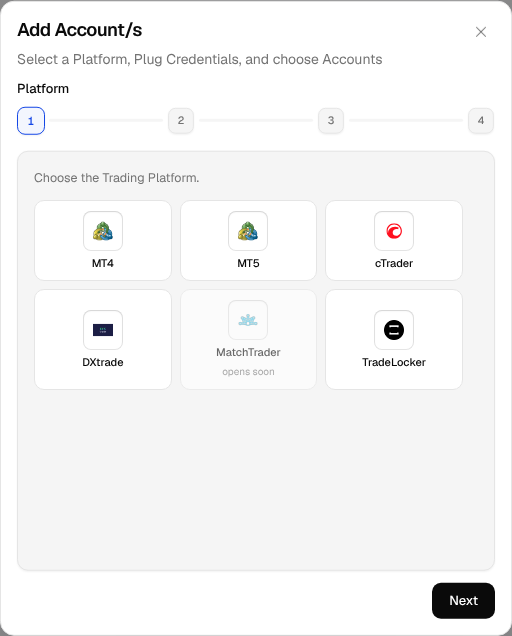
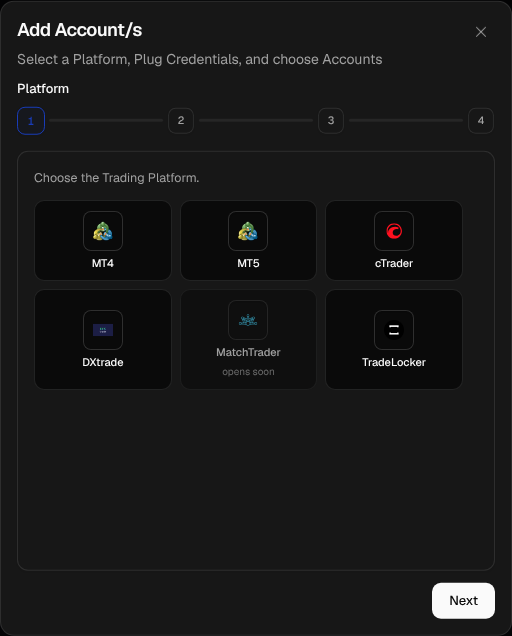
Each platform has its own page that shows where to find these details, starting with MetaTrader 5. Add an Account covers every step.
An Account becomes a Master only when you put it in a Connection, so you add Master and Receiver Accounts the same way. A read-only investor login works as a Master and never as a Receiver, because a Receiver has to place Trades.
Add a Receiver Account
Add the Account that should receive the copies the same way. Add as many as you need.
Create a Connection
Open Connections and select Create Connection. The wizard asks for:
- Setup: a name and the Master Account.
- Receivers: the Accounts that copy it.
- Watched Symbols: the Master symbols to copy.
- Symbol Mapping: the matching symbol on each Receiver.
- Risk Config: how each entry is sized.
- Delay Config: an optional delay before each entry.
- Receiver Overrides: a different Risk or Delay setting for one Receiver.
- Recap: everything above on one page to check.
Select Create to start copying. Create a Connection goes through each step.
Watch the first copy
When the Master opens a Trade, the copies appear under Live now on the Overview and in the Connection. A Connection shows Active while a Trade is open and Healthy when it is waiting.
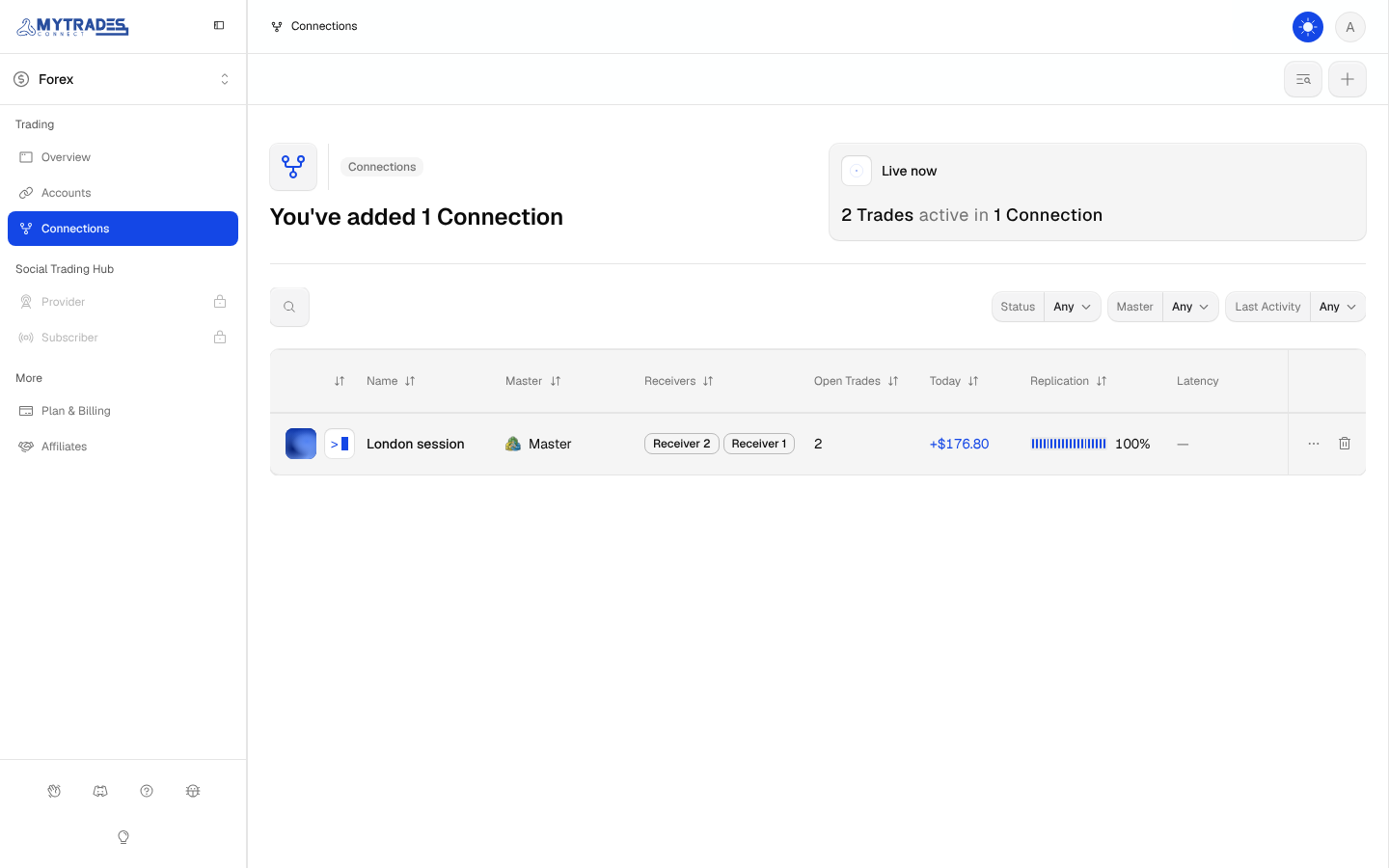
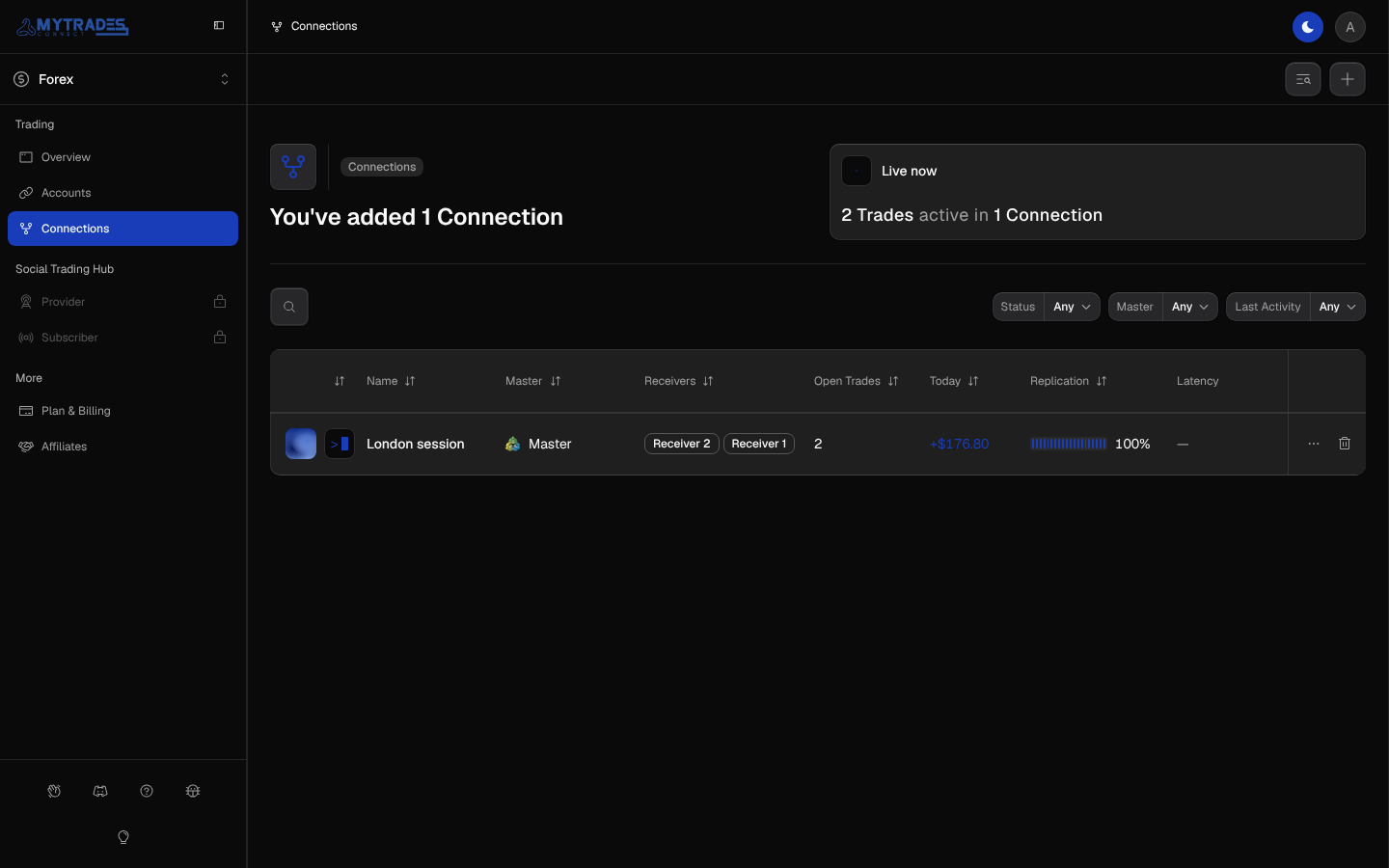
Open the Connection to see each Trade and what every Receiver did with it, as Trades and P&L shows. Overview explains the rest of the first page. If a copy is missing, Troubleshooting lists the reasons.