
Around the app
The sidebar, Forex and Futures, your profile, Settings, What's New, the welcome tour and signing out.
The sidebar
The sidebar on the left holds everything you open in MyTradesConnect.
- At the top, the switcher picks Forex or Futures. Each is its own space: Accounts, Connections, Trades and figures never mix between the two, and every page shows the one you picked. Switching keeps you on the same kind of page, such as Accounts.
- Trading holds the Overview, Accounts and Connections.
- Social Trading Hub holds Provider and Subscriber, for sharing your Connections with Signals Subscribers and following a Signals Provider. Both carry a lock: they open soon.
- More holds Plan & Billing, your plan, how many Accounts you use, every tier and your billing, which Plans and billing explains, and Affiliates.
The icons at the bottom of the sidebar are:
- Welcome!: replays the welcome tour.
- Community: opens our Discord in a new tab.
- Help: opens these docs in a new tab.
- Bug Report and Feature Request: send us a report or an idea from inside the app, as Report a bug shows.
The welcome tour
On your first visit, a short tour points out the Forex and Futures switcher, Trading, the Social Trading Hub and the Welcome! button. It shows once. Select Welcome! at the bottom of the sidebar to see it again at any time.
Your profile
Select your avatar at the top right, then Profile, to open My Profile on the right of any page.
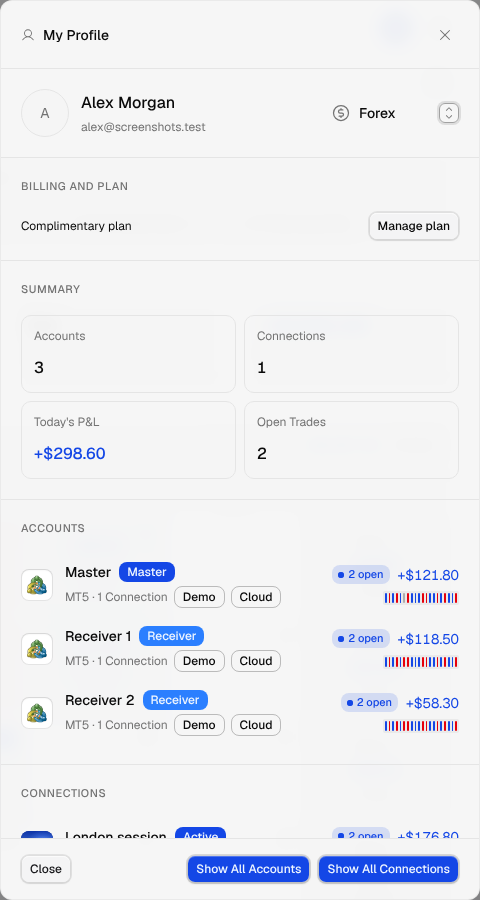
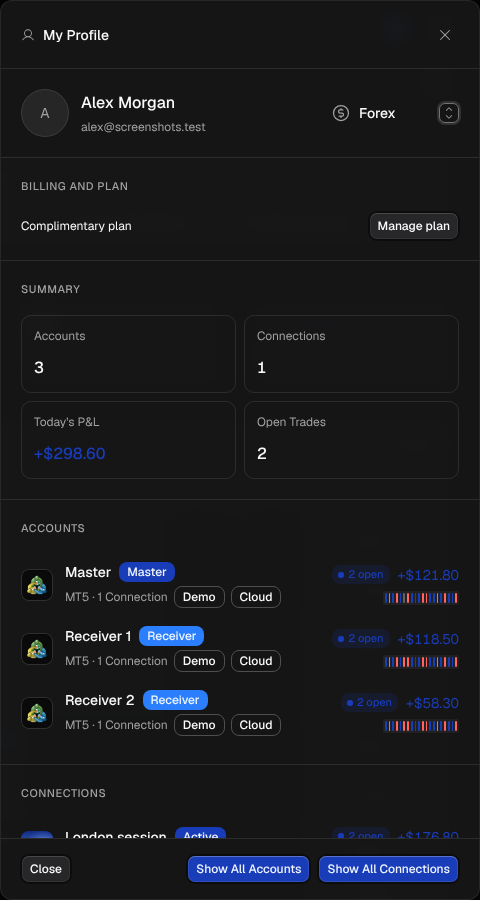
- At the top: your name, your email and a Forex and Futures switcher. Switching here switches the whole app, and the profile stays open.
- Billing and plan: your plan, and Manage plan, which opens Plan & Billing.
- Summary: your Accounts, Connections, Today's P&L and Open Trades in this Market Environment.
- Accounts and Connections: one row each, with its status, P&L, an N open badge while it has open Trades, and a bar of its last 20 Trades. Rows that need a look, with Error or Diverged, come first, then the rest from A to Z. Select a row to open it in a side panel.
Show All Accounts and Show All Connections at the bottom open the full tables.
The profile lives in the page address, so the browser's back button closes it.
Settings
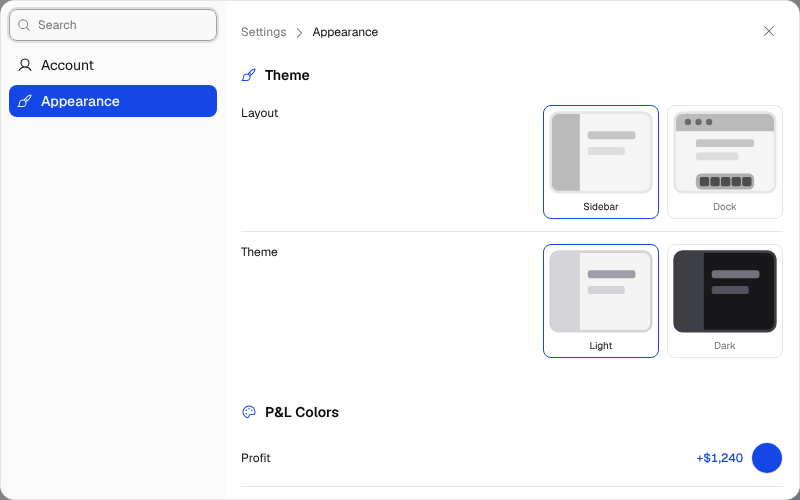
Select your avatar at the top right, then Settings. Settings opens over the page you are on, with two parts on its left:
- Account: your Local IP Device, to pair a computer, see whether it is online and get the app. Cloud or Local IP walks through it.
- Appearance: how the app looks.
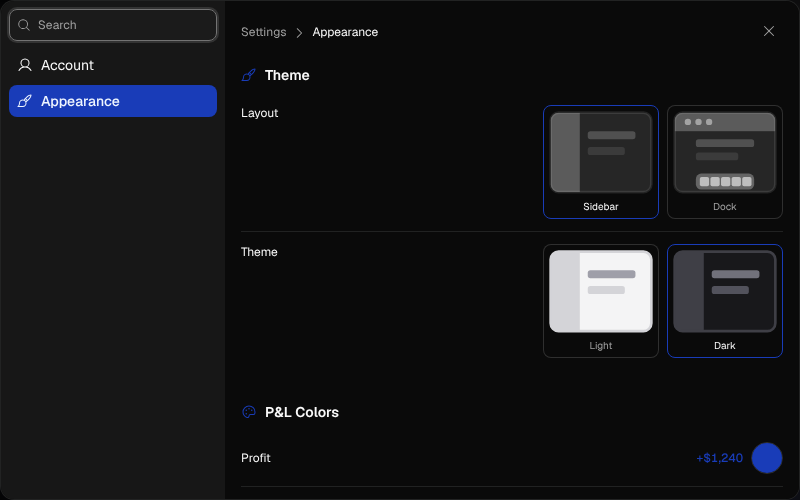
In Appearance:
- Layout: Sidebar keeps the sidebar on the left; Dock moves the pages to a dock at the bottom of the window.
- Theme: Light or Dark.
- P&L Colors: the colors of profit and loss figures across the app. Select a circle to pick your own color, and Reset brings back the defaults. Your choice stays in this browser.
- Live Trades Widget: shows the Live Trades widget at the top right. It is off until you turn it on, and your choice stays in this browser.
Type in Search at the top left to jump to a setting. Settings lives in the page address too, so you can share a link to one part, and the browser's back button closes it.
What's New
When we release something new, a What's New card opens once on your next visit and lists each change with a short note. Select Got it to close it. To read past releases again, select your avatar, then What's New.
The Changelog in these docs lists every change, including the smaller ones.
Live Trades
The Live Trades widget at the top right, beside the light and dark switch, lists your open Trades with their newest step and shows each close for a few seconds. Turn it on in Settings, under Appearance. Overview explains what it shows.
Logs
Logs on the Overview, Accounts and Connections pages, and on every Account and Connection, opens Logs: one list of what happened on your Accounts and Connections.
Light and dark
The round button at the top right switches between light and dark mode. Theme in Settings does the same.
Sign out
Select your avatar at the top right, then Log out.