
Add an Account
Connect a Trading Account login to MyTradesConnect.
You add every Account the same way, whether it will be a Master or a Receiver. An Account takes a role only when you put it in a Connection, as Master or Receiver explains.
Open Accounts and select Add Account/s. The wizard has three steps, then asks which of the Accounts it found to add.
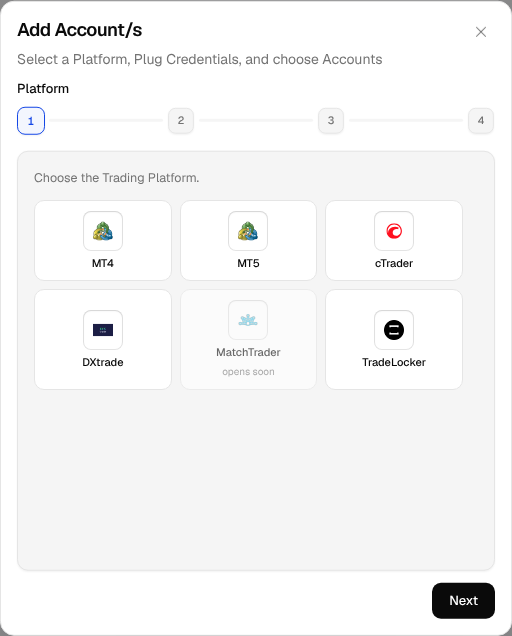
Platform
Choose the Trading Platform that hosts the Account. Platforms open one at a time, and a platform that is not open yet shows when it opens.
Where
Choose where the login runs. Cloud or Local IP explains the two. Local IP needs your paired computer online: while it is not, the wizard says so and Open Settings takes you to pair or check it.
Credentials
For a platform you sign in to with a password, choose the Account type, Demo or Live, then enter the login, Password and Server exactly as your platform shows them. The login is the Account number on MetaTrader 4 and MetaTrader 5, your email on TradeLocker, and your Username on DXtrade, whose Server is its web terminal's address. On Rithmic, enter your User and Password and choose your System from the list instead of a server. On MetaTrader 4, MetaTrader 5, DXtrade and Rithmic, select Where do I find this? to open the platform's page.
MyTradesConnect logs in to check them, and the button shows Checking… until it finishes. If the platform refuses, its reason shows under the fields and you stay on this step, so you can correct a field and try again.
A read-only MetaTrader 5 investor password works too. The Account then shows a Read-only chip and can be a Master only.
For a platform with its own sign-in page, such as cTrader, Tradovate or NinjaTrader, select Connect instead. You approve MyTradesConnect on the platform's page and come back to the last step. On cTrader, tick View only first if the Accounts should only ever be copied from. On Tradovate and NinjaTrader, choose the Account type, Demo or Live, before you select Connect, because one login holds demo or live Accounts, never both.
Choose your Accounts
One login can hold more than one Trading Account. MyTradesConnect finds every Account the platform reports under the login and lists each on its own row. Tick Include on the Accounts to add, give each a name you will recognise, such as the broker and the strategy, then select Add.
If the login holds more Accounts than your plan has room for, MyTradesConnect still adds the login. It ticks as many Accounts as fit, leaves the rest cleared, and the last step tells you how many fit. Swap the ticks to choose which ones to add. Accounts left cleared take no slot, and you can include them later from Edit a login once your plan has room.
The Accounts appear in Accounts with their Realm, demo or live, and are ready for a Connection.