
Accounts and their pages
Read the Accounts table, narrow it with search and filters, and open an Account's side panel or page.
Accounts lists every Trading Account you added in the current Market Environment, with how each one is doing today.
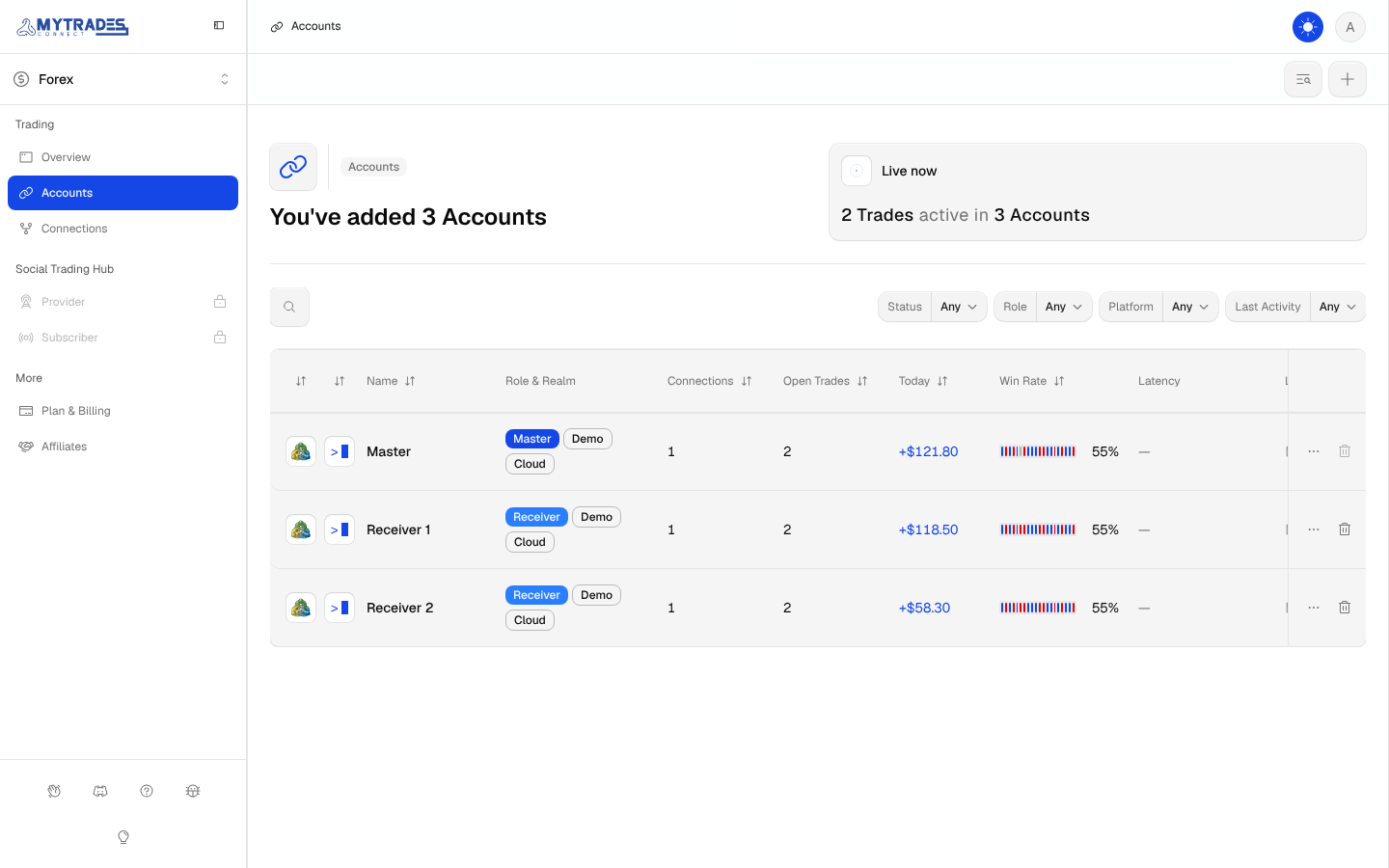
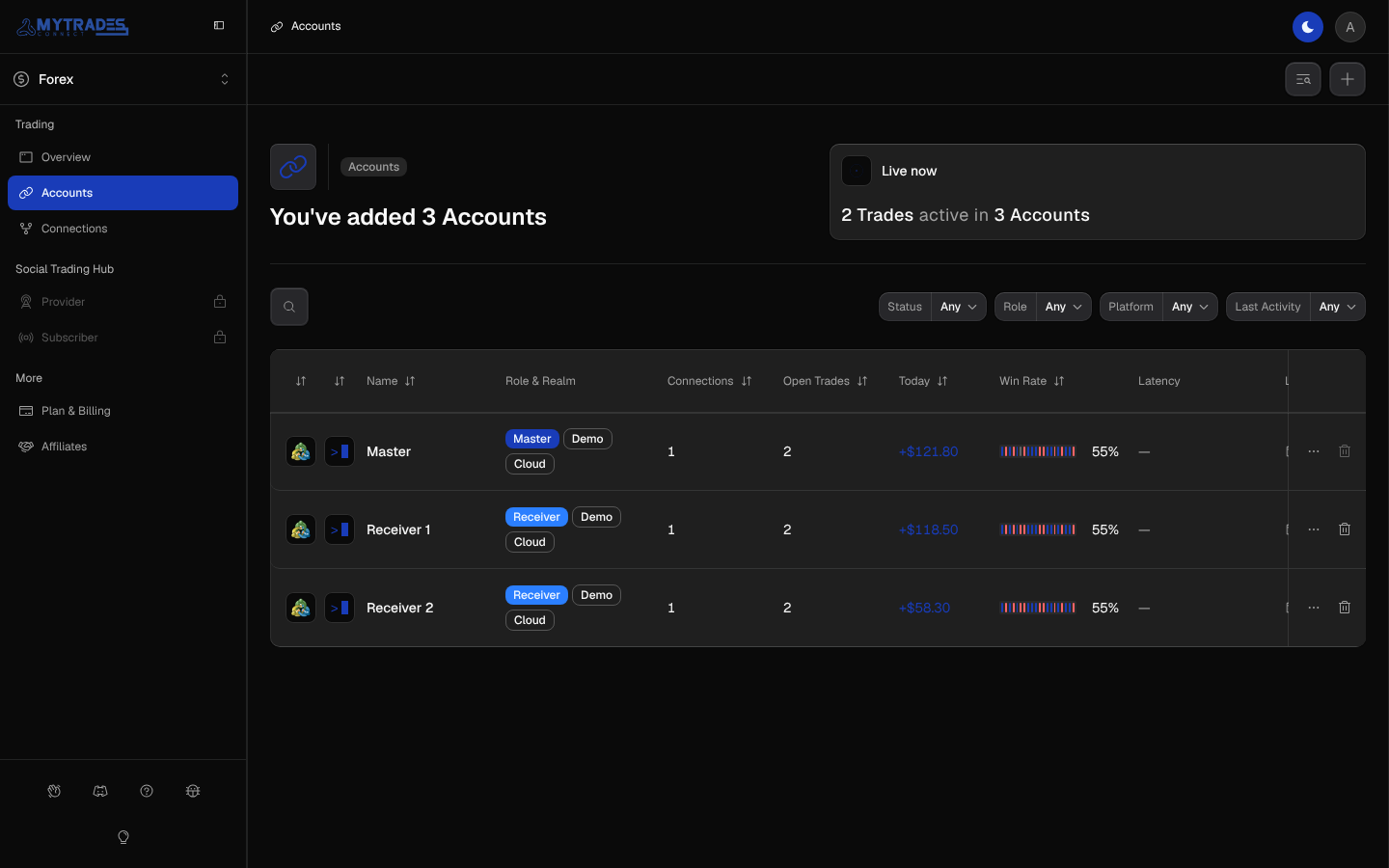
The table
Each row is one Account. The first two columns hold only icons: the Account's Trading Platform and its status. Hover either one to read it, and Account status explains each status.
| Column | What it shows |
|---|---|
| Name | The name you gave the Account. Diverged and Copy failed badges appear beside it, each with a count, when a copy needs a look. |
| Role & Realm | Master, Receiver or Unused, then Demo or Live and Cloud or Local IP. An Account is Unused until a Connection uses it. |
| Connections | How many Connections the Account is part of. |
| Open Trades | How many Trades are open on the Account right now. |
| Today | Today's P&L: the Realized P&L of Trades closed today, New York time. |
| Win Rate | A bar of the last 20 closed Trades, wins and losses in your P&L colors, and the share that ended in profit. |
| Latency | The last 20 copies onto the Account as bars, colored by outcome. A dash means nothing was copied onto it yet. |
| Last Copied Event | The day and kind of the most recent step copied, such as Open or SL Hit. |
Select a column title with arrows to sort by it, and again to reverse it. Today sorts by currency first, because P&L in different currencies has no common order.
At the end of each row, the menu holds Open full page and Edit, and the trash icon removes the Account, as Remove an Account shows.
Search and filters
The search icon above the table finds Accounts by name, login number, Trading Platform, role, realm or status. The filters beside it each pick one value, and Any turns a filter off:
- Status: Error, Warning, Active, Healthy, or Diverged for any Account with a diverged copy.
- Role: Master, Receiver or Unused.
- Platform: the Trading Platforms your Accounts use.
- Last Activity: Accounts whose Last Copied Event falls in the last 24 Hours, 7 Days, 30 Days or 90 Days.
Filters stay in the page address, so a filtered view is a link you can bookmark or share with yourself on another device. On a phone, the filters gather in one Filters panel.
The side panel
Select a row to open the Account in a side panel without leaving the table. It shows the same sections as the Account's page, stacked, plus the Account's open Trades under Live now. A Connection's name in it opens that Connection's panel, and the back arrow returns to the Account. The panel lives in the page address too, so the browser's back button closes it.
The Account's page
Open full page in a row's menu, or in the side panel, opens the Account's page. Its header shows the role, the status and a Live now callout for that Account. Below it sit the time menu, Refresh symbols, Edit and Remove. While an Account on the same login is the Master of a Connection, Remove stays locked until you delete that Connection.
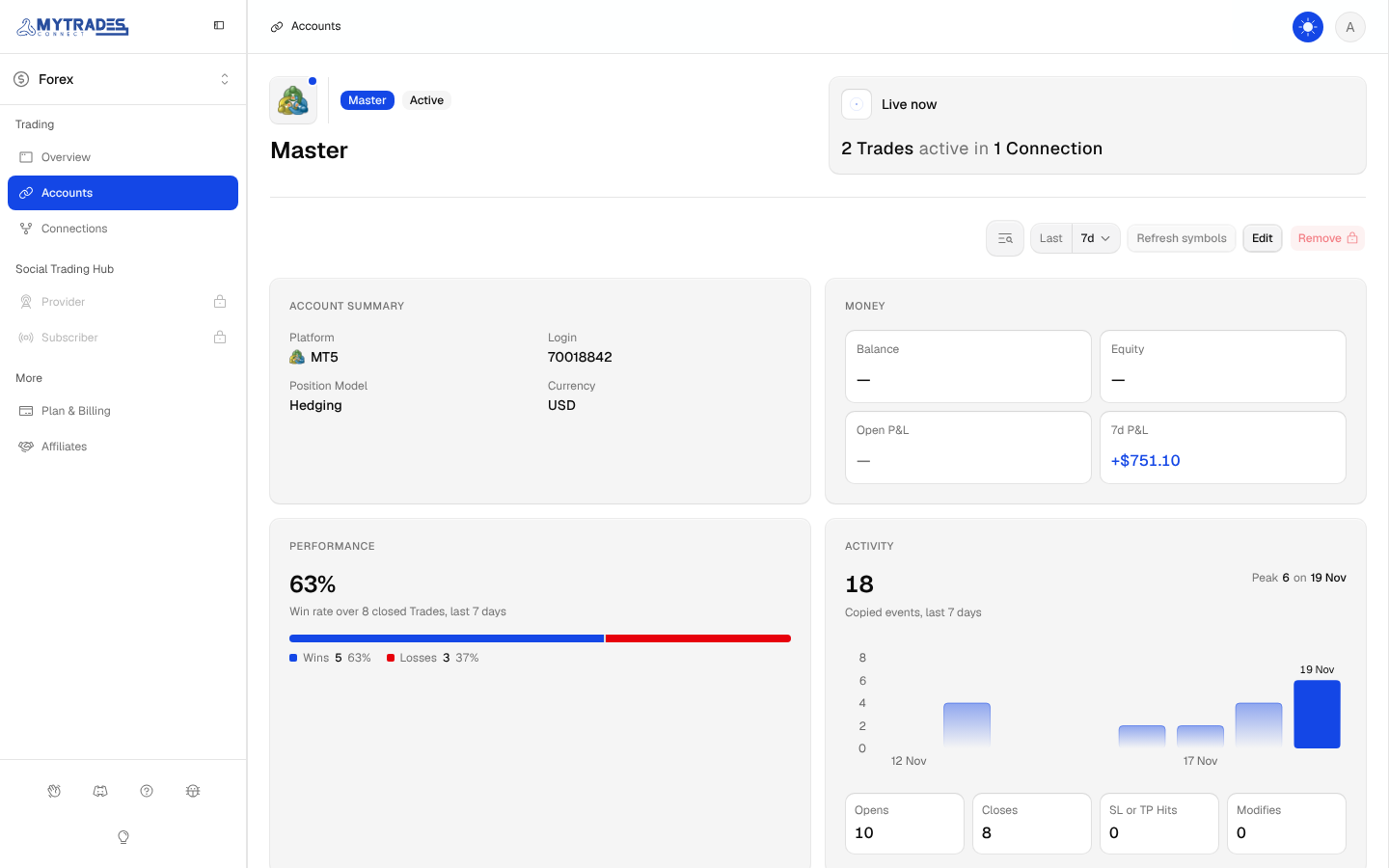
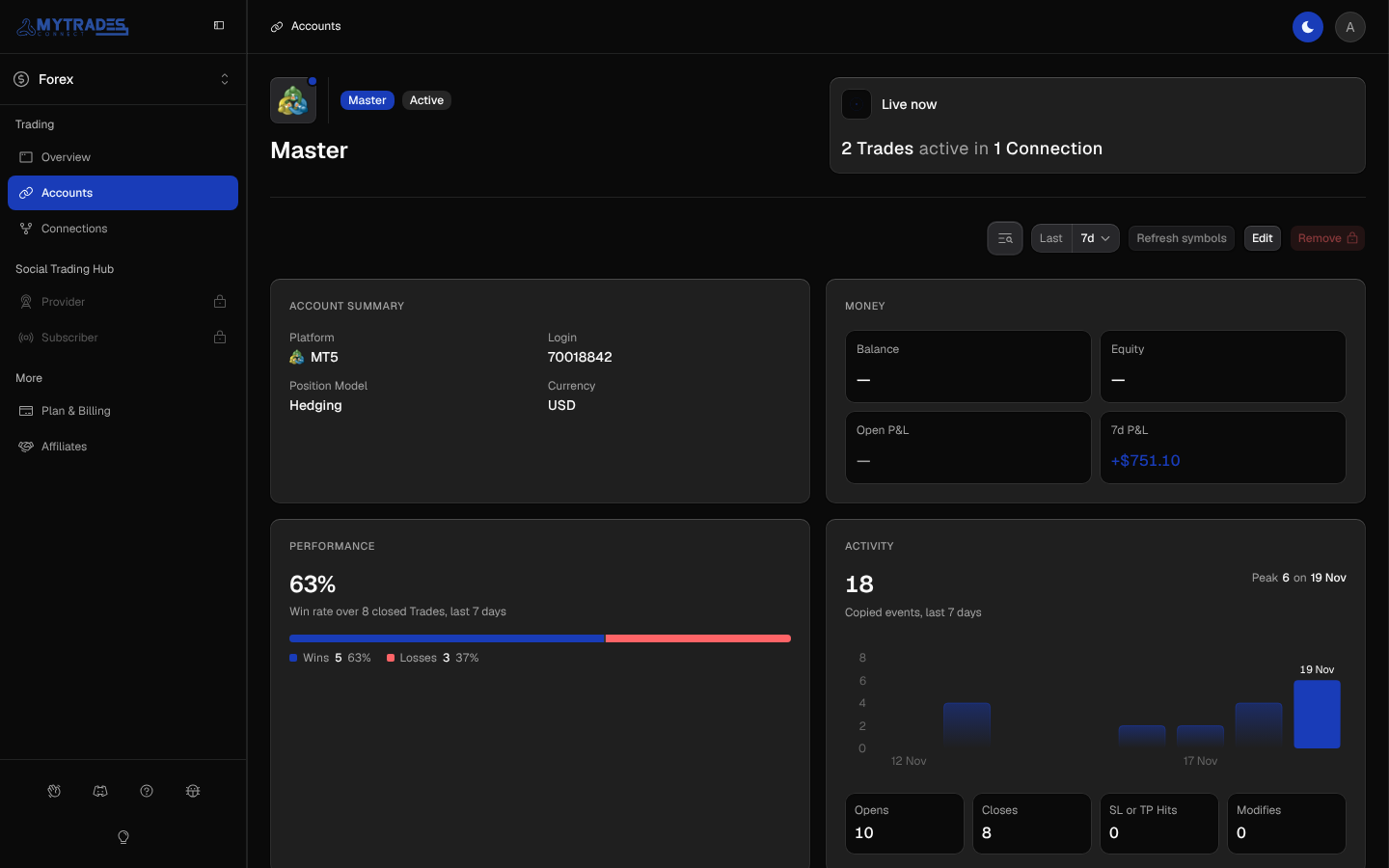
The time menu picks the last 24h, 7d, 30d or 90d, 7 days by default, and every section below follows it.
- Account summary: the Trading Platform, the login, the Position Model and the Account's currency.
- Money: Balance and Equity as the platform reports them, Open P&L, and the P&L of Trades closed in the chosen period.
- Performance: the Win Rate over Trades closed in the period, with wins and losses as a bar. On a Receiver, a second bar shows how the copies onto it went.
- Activity: how many steps were copied in the period, as a total and a bar chart with one bar per New York day (per hour over 24h) and the busiest one named, split into Opens, Closes, SL or TP Hits and Modifies.
- Latency: the latest copies in the period as bars, up to 50, with their median as a dashed line.
- Connections: every Connection the Account is part of, each opening its own panel.
Money and P&L show only while the Account is in a running Connection, so a stopped Account never shows old figures.
The P&L Calendar below the sections shows the Account's Realized P&L day by day, in the Account's currency, and a day opens the Trades that closed on it. It keeps past days even after the Account leaves every running Connection.
The Trades table at the bottom lists the Account's Trades. Trades and P&L explains it.